












Updating to Mojave
Updating to Mojave
Total completion time – approximately 2 hours
To ensure that your MacBook remains updated and working with BSS systems, please update your mac’s operating system to Mojave.
Before proceeding with this update make sure you have backed up your files to an external storage device or the cloud.


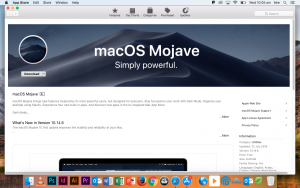
To check to see whether you need to update, click on the apple icon to the upper left of your screen, then click “About This Mac”. A screen will come up like the image above. If your mac operating system is not macOS Mojave, then you will need to continue to the next step. If you are already on Mojave, then your mac will continue to function correctly, you don’t need to do anything more.
If your operating system is not Mojave, then please click on the link below. The link will open in your internet browser, before opening in the app store. You may be asked whether you want to open to the app store, if this happens please click “Open in App Store”. Click “Download”, then wait until the update has downloaded (this will take approximately 20-30 minutes).
https://apps.apple.com/au/app/macos-mojave/id1398502828?ls=1&mt=12

Once Mojave is downloaded, the status bar will change from “downloading” to “open”. Click “open”, then follow the prompts to install. If you are asked what disk to install Mojave on, select “Macintosh HD”..


You may be asked to type in your credentials during this process, please use your username and password for your MacBook. If your battery is less than 60%, the installer will refuse to install until you plug in a charger.


Click install and wait until you are prompted to restart your computer (this may take another 20 minutes). Once installed, your computer may restart multiple times until a standard login screen appears (this may take anywhere from 15 to 50 minutes). Please log in, then follow the remaining prompts. You don’t have to send data to Apple if you don’t want to. The choice between the light and dark theme is completely up to you.
Congratulations, you have now successfully updated your computer to MacOS Mojave! You will be asked If you have any issues, please come into the IT office and we can assist you.
Please do not update to Catalina yet as this will cause issues for you at school.
